2 posts tagged with "prometheus"

View All Tags

jPOS Metrics Explorer: logs and AI in the loop

· 7 min read
Alejandro Revilla
jPOS project founder
AR Agent
AI assistant

Most jPOS-based applications are monitored using Elasticsearch, Kibana, and Grafana, or commercial alternatives such as Datadog, Splunk, and New Relic—and I never liked that.

External monitoring solutions usually rely on a Java agent that gives a remote server access to the JVM. These applications are often PCI certified because many QSAs don't fully understand what a JVM is or how powerful a javaagent can be. Otherwise, they would probably be considered uncertifiable or, at the very least, could extend the scope of your CDE to the remote provider. That's one of the reasons I wrote SensitiveStrings: to keep in-JVM sensitive data encrypted most of the time, adding a little defense-in-depth and flying under the radar of scripts looking for sensitive card data.

Elasticsearch is an awesome tool, but it's overkill to dump all your payload into it, such as verbose jPOS logs. We use it together with Debezium to store pointers to transaction data, not the transaction data itself, which would otherwise just replicate primary storage. Kibana is excellent for monitoring indexed business data, but log data is inherently unstructured. It evolves over time, and the queries evolve with it.

Grafana is also a great product, but dashboards are typically designed once, tweaked during development, and then left untouched for years. Eventually, a new DevOps team member inherits them without really knowing how they were built or how to modify them.

Those concerns led me to integrate metrics directly into jPOS using Micrometer, producing native Prometheus and OpenTelemetry metrics so we can eliminate remote Java agents altogether. I also worked on Structured Logging so logs are precise enough that you don't have to rely on regular expressions to search for information, and instrumented jPOS with Java Flight Recorder for the situations where we need to perform deep JVM forensics.

All those pieces are finally coming together in the integrated Metrics Explorer and Log Viewer. When you're investigating a problem, you can click on a graph and jump directly to the corresponding structured log messages with a single click. Instead of being limited to predefined dashboards, you have the full power of PromQL at your fingertips.

And then comes the final piece: integrated AI.

You can simply ask, "Please check if we have GC pressure over the last six hours," click the jPOS AI icon, and immediately have that free-text request translated into PromQL. No need to know the metric names, labels, or query syntax—the AI does that for you.

The goal isn't to replace Prometheus, Grafana, Elasticsearch, or Kibana. They remain fantastic tools. The goal is to make jPOS itself understand its own runtime well enough that the most common operational and forensic tasks can be performed from a single, integrated environment, without shipping logs and JVM internals to external systems by default.

Metrics are excellent at telling you that something changed. They are less good at explaining why.

That gap usually sends an operator across several tools: a dashboard for the symptom, a query editor to narrow it down, a log system for the events around it, and perhaps documentation to reconstruct the right query. The latest jPOS Control Plane demo brings those steps together without making the result opaque.

The Metrics Explorer works with the Prometheus metrics exposed by a running jPOS application. It lets an operator move from a chart to the relevant logs, ask questions in plain language, and inspect or run the generated PromQL before relying on it.

jPOS Monitoring

· 5 min read
Orlando Pagano
Senior Developer

jPOS Monitoring

/by Orlando Pagano a.k.a. Orly/

As of jPOS 3, a Docker Compose setup is included out of the box to monitor jPOS using Prometheus and Grafana.

This setup provides a ready-to-use environment to visualize metrics exposed by the jPOS metrics module, with preconfigured dashboard and data source.

Repository

jPOS-monitoring project

Project Structure

.
├── grafana
│   └── dashboards
│       ├── jPOS.json
│       └── JVM.json
│   └── provisioning
│       ├── dashboards
│       │   └── dashboards.yaml
│       └── datasources
│       └── datasource.yaml
├── prometheus
│   └── prometheus.yaml
└── compose.yaml

Docker Compose Setup

compose.yaml

services:
prometheus:
image: prom/prometheus
...
ports:
- 9090:9090

grafana:
image: grafana/grafana
...
ports:
- 3000:3000

This Compose file defines a stack with two services: prometheus and grafana.

When deploying the stack, Docker maps each service's default port to the host:

Note: Ensure ports 9090 and 3000 on the host are available.

You don’t need any additional infrastructure — both services run entirely via Docker containers.

Prometheus Behavior and Storage

  • Prometheus polls servers (any number of them) every 15 seconds by default — this is configurable but a good starting point.
  • It’s highly efficient, storing each metric at about 1.3 bytes per sample (~11 bits).
  • Grafana queries Prometheus as its data source for visualization.
  • By default, Prometheus stores data under /prometheus inside the container. To retain metrics across restarts, mount a persistent volume — otherwise, data will be lost when the container is rebuilt or removed.

Deploying the Stack

To start the monitoring stack:

$ cd <jPOS-monitoring-root>/dockerfiles/jPOS-monitoring
$ docker compose up -d
[+] Running 4/4
✔ Network jpos-monitoring_dashboard-network Created 0.0s
✔ Volume "jpos-monitoring_prom_data" Created 0.0s
✔ Container prometheus Started 0.4s
✔ Container grafana Started

Additionally, the just tool is included as an optional helper to simplify command execution.

Requirement: just (Installation guide)

To start the monitoring stack using just tool:

$ just monitoring-up

Expected Result

Confirm that both containers are running and ports are correctly mapped:

$ docker ps
CONTAINER ID IMAGE COMMAND STATUS PORTS NAMES
dbdec637814f prom/prometheus "/bin/prometheus --c…" Up 8 mins 0.0.0.0:9090->9090/tcp prometheus
79f667cb7dc2 grafana/grafana "/run.sh" Up 8 mins 0.0.0.0:3000->3000/tcp grafana

Stopping the Stack

To stop and remove the containers:

$ docker compose down  # Use -v to remove volumes

To stop using just tool:

$ just monitoring-down

To stop and remove the containers using just tool:

$ just monitoring-down-remove

jPOS Metrics Integration

At the jPOS level, you only need to expose the metrics endpoint using the -mp option:

$ q2 -mp 18583

You can use any port, but 18583 is the conventional default in jPOS for metrics.

To verify it's working:

$ curl http://localhost:18583/metrics

This confirms the embedded jPOS metrics server is accessible.

Alternative: Configure in cfg/default.yml

Port 18583 is the default port used by the jPOS metrics server, but that’s just an arbitrary value and can be configured in cfg/default.yml or as a parameter to the bin/q2 script.

If you configure using cfg/default.yml, you need to add something like this:

q2:
args:
--metrics-port=18583

This keeps the port definition centralized and consistent across environments.


Sample Dashboards

Here’s what you’ll see once everything is running:

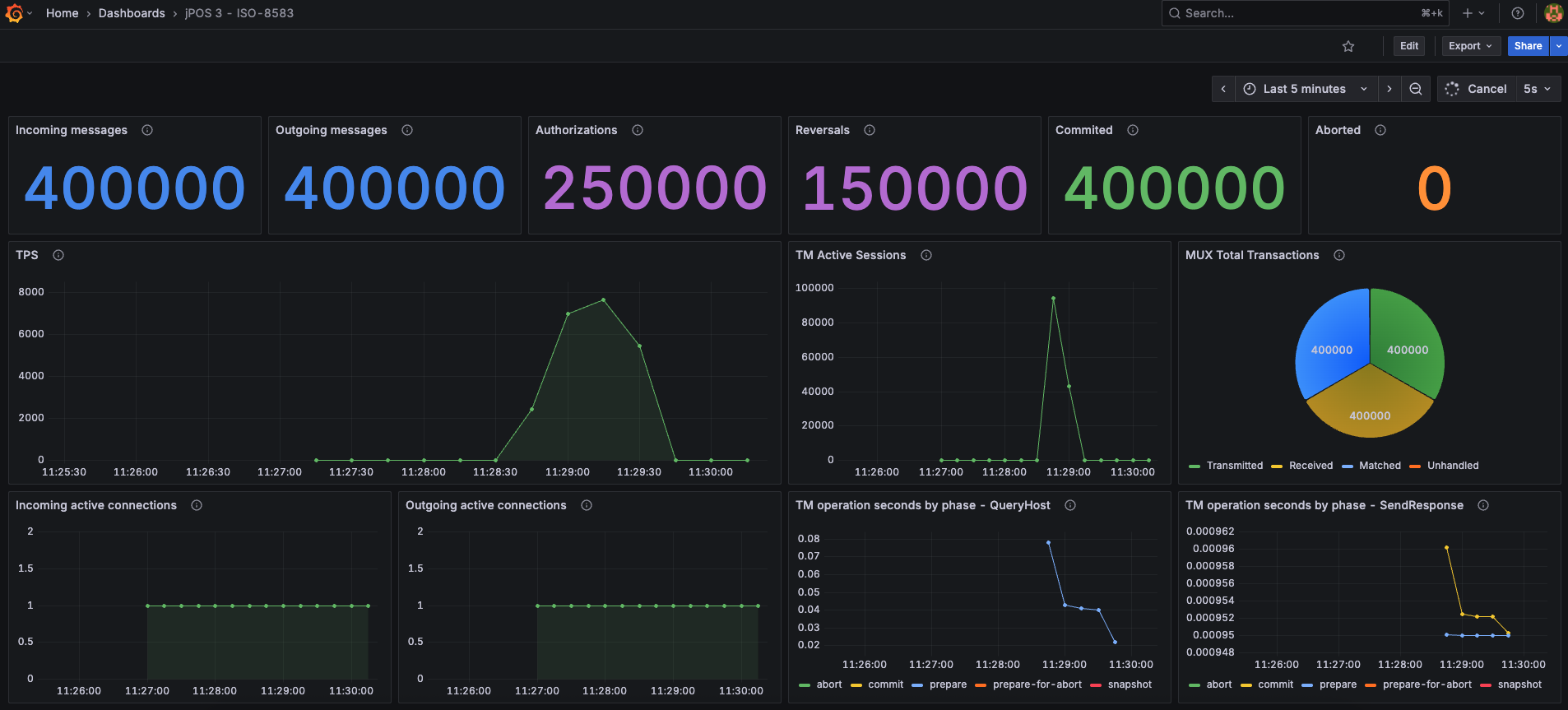
jPOS Dashboard

This dashboard provides insights into jPOS-specific metrics such as ISO messages processed, TPS, MUX activity, active sessions, and active connections.

By default, the dashboard assumes that the TransactionManager runs the QueryHost and SendResponse participants, and their metrics are displayed.

Metrics from other participants can also be added, or existing ones edited or removed as needed.

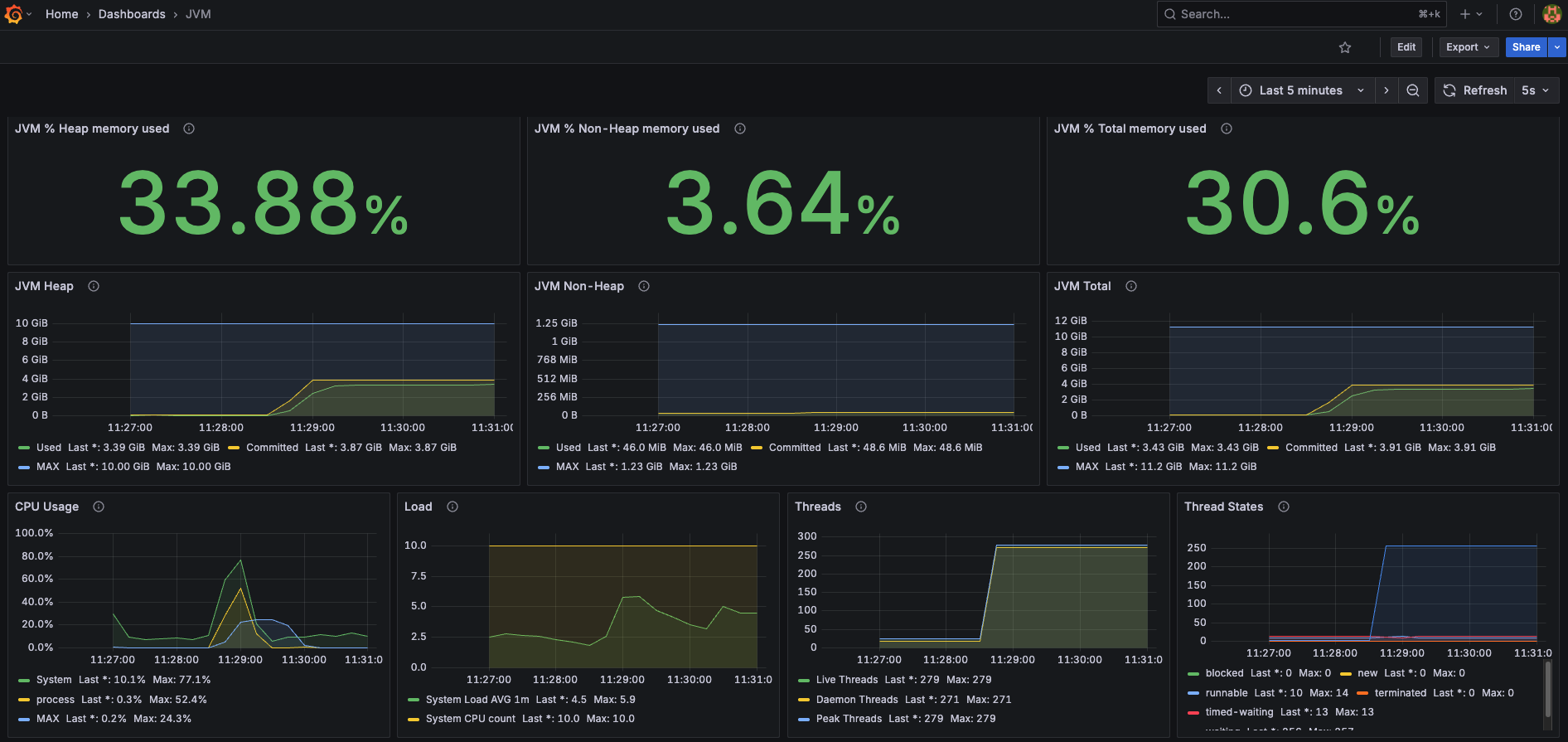
JVM Dashboard

This dashboard tracks JVM-level stats like memory usage, garbage collection, thread counts, and class loading.

These dashboards are available in the repository under grafana/dashboards/.

jPOS Dashboard Variables

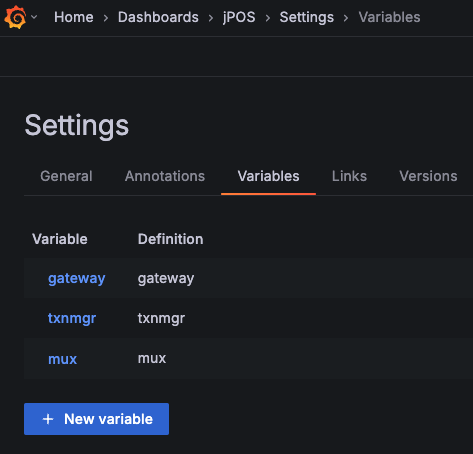
By default, the Grafana dashboard includes three predefined variables that can be customized as needed:

  • gateway – Used within the dashboard as name="$gateway"

    This corresponds to the name assigned to the QServer instance that receives incoming messages in jPOS.

    Example:

    <server class="org.jpos.q2.iso.QServer" name="gateway">
  • txnmgr – Used within the dashboard as name="$txnmgr"

    This corresponds to the name of the TransactionManager responsible for orchestrating the participants in jPOS.

    Example:

    <txnmgr class="org.jpos.transaction.TransactionManager" name="txnmgr">
  • mux – Used within the dashboard as name="$mux"

    This corresponds to the name assigned to the QMUX used by jPOS to communicate with an external network.

    Example:

    <mux class="org.jpos.q2.iso.QMUX" name="mux">

A screenshot of the dashboard variable editor is included below to illustrate where these values can be modified.


All dashboards, variables, and other Grafana configurations can be modified as needed to fit your specific setup or preferences.